Logo Colombia Colombia
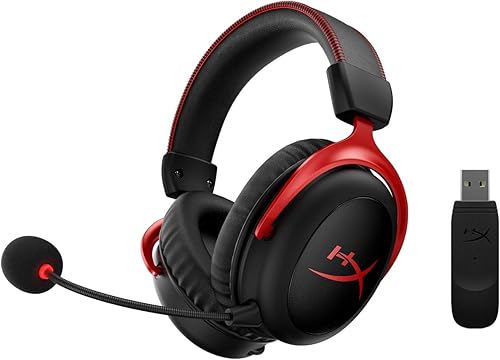
Auricular para juegos HyperX Cloud II con sonido envolvente 71 Metal Gun Metal disponible en Yaxa Colombia -10%

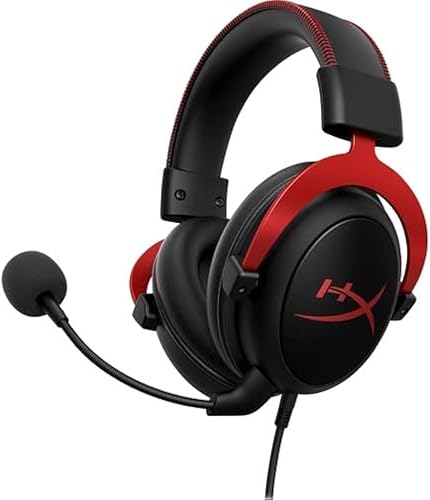
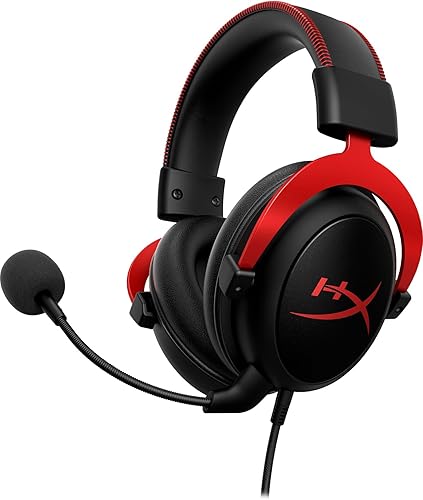
Auricular para juegos HyperX Cloud II con sonido envolvente 71 Metal Gun Metal

Compra Auricular para juegos HyperX Cloud II con sonido envolvente 71 Metal Gun Metal original con envío a todo Colombia

Videojuegos / PC / Accesorios / Diademas y Audífonos

Precio y disponibilidad de Auricular para juegos HyperX Cloud II con sonido envolvente 71 Metal Gun Metal

$ 703.599,3

$ 781.777

Addi

0 % de interés sin costos adicionales en 3 cuotas de $ 234.533 , pagando con Addi. Obtén tu cupo

Envío gratis a todo Colombia

Disponible en todos nuestros productos, sin costos ocultos ni mínimo de compra.

Stock disponible: 7 unidades en existencia.

Tiempo de entrega: Entrega internacional estimada de 9 a 12 dias habiles en Colombia.

🛒 Comprar ahora
Pago seguro garantizado

Valoración de clientes

4.5 sobre cinco estrellas 514 opiniones

HyperX Cloud II features a newly designed USB sound card audio control box that amplifies audio and voice for an optimal Hi Fi gaming experience, so you can hear what you’ve been missing. Open up a world of detail other gamers will never know — the rustle of a camper’s boot, the scuttle in a distant vent. This next generation headset generates virtual 7.1 surround sound with distance and depth to enhance your gaming, movie or music experience. The headset must be selected as the default audio device in your sound settings. For Windows: 1. Open up Control Panel and select Hardware and Sound and then select Sound. 2. If the “HyperX 7.1 Audio” is not currently the default audio device, right click on the option and select “Set as Default Device.” 3. This should place a green check mark next to the default audio device. Repeat the same steps for the microphone portion of the headset, located under the “Recording” tab (also found in the Sound program in Control Panel.) For Mac: 1. Click the Apple menu and select “System Preferences” from the drop down menu. 2. In “System Preferences”, click on the ‘Sound’ icon. 3. Click on the Input tab and select “HyperX 7.1 Audio” for default sound input. 4. Click on the Output tab and select “HyperX 7.1 Audio” for default sound output. Note: The headset may appear as "USB audio" instead of "HyperX 7.1 Audio". Hear the rich, impactful sounds of your games with clarity and precision.

Beneficios clave de Auricular para juegos HyperX Cloud II con sonido envolvente 71 Metal Gun Metal

  • HyperX Cloud II Gaming Headset para PC y PS4 – Gun Metal (khx-hscp-gm)
  • El número de Modelo (ItemModelNumber)
  • ‎KHX-HSCP-GM

Ficha técnica

Fabricante
‎HP Inc.
Dimensiones
4.33 x 4.33 x 3.54 pulgadas
SKU
B00SAYCVTQ
  • Compra segura y envío rápido a todo Colombia
  • Garantía Yaxa y soporte experto en tu Auricular para juegos HyperX Cloud II con sonido envolvente 71 Metal Gun Metal
  • Atención personalizada por WhatsApp y canales oficiales.

Descripción detallada de Auricular para juegos HyperX Cloud II con sonido envolvente 71 Metal Gun Metal

HyperX Cloud II features a newly designed USB sound card audio control box that amplifies audio and voice for an optimal Hi Fi gaming experience, so you can hear what you’ve been missing. Open up a world of detail other gamers will never know — the rustle of a camper’s boot, the scuttle in a distant vent. This next generation headset generates virtual 7.1 surround sound with distance and depth to enhance your gaming, movie or music experience. The headset must be selected as the default audio device in your sound settings. For Windows: 1. Open up Control Panel and select Hardware and Sound and then select Sound. 2. If the “HyperX 7.1 Audio” is not currently the default audio device, right click on the option and select “Set as Default Device.” 3. This should place a green check mark next to the default audio device. Repeat the same steps for the microphone portion of the headset, located under the “Recording” tab (also found in the Sound program in Control Panel.) For Mac: 1. Click the Apple menu and select “System Preferences” from the drop down menu. 2. In “System Preferences”, click on the ‘Sound’ icon. 3. Click on the Input tab and select “HyperX 7.1 Audio” for default sound input. 4. Click on the Output tab and select “HyperX 7.1 Audio” for default sound output. Note: The headset may appear as "USB audio" instead of "HyperX 7.1 Audio". Hear the rich, impactful sounds of your games with clarity and precision.

Características destacadas

  • HyperX Cloud II Gaming Headset para PC y PS4 – Gun Metal (khx-hscp-gm)
  • El número de Modelo (ItemModelNumber)
  • ‎KHX-HSCP-GM

Otros clientes también compraron